

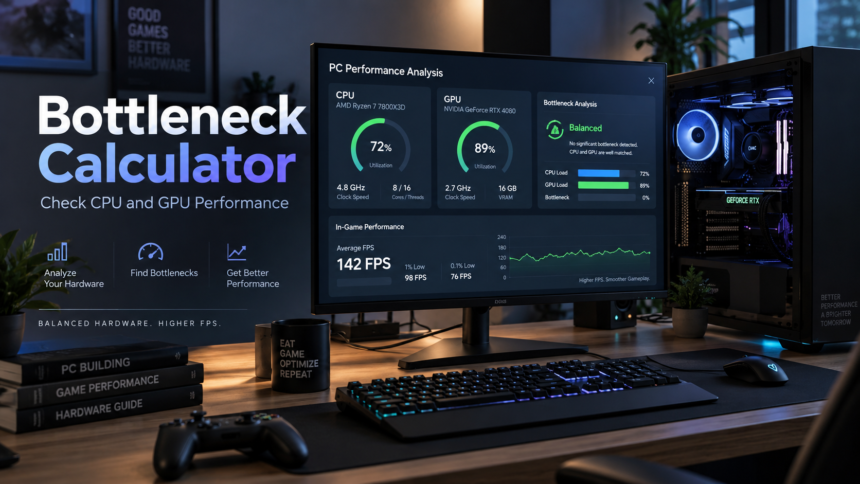
A bottleneck calculator is a tool that estimates whether one part of your PC—usually the CPU or GPU—is holding back another part.
For example, imagine you have a very powerful graphics card but an older processor. The graphics card may be ready to draw the next game frame, but it has to wait for the processor to finish its work. In that situation, the CPU can become the bottleneck.
The opposite can also happen. A fast CPU may prepare game data faster than the graphics card can render it. Then the GPU becomes the limiting part.
Intel defines a PC bottleneck as a component that limits the potential performance of other hardware. It also notes that CPU and GPU bottlenecks are especially important in gaming PCs, although RAM, storage, displays, and other parts can also limit performance.
A bottleneck calculator can therefore be useful when planning a PC build or upgrade. But there is an important catch:
A bottleneck percentage is an estimate, not a permanent fact about your computer.
The real bottleneck can change from one game to another and even from one scene to another.
What Is a Bottleneck Calculator?
A bottleneck calculator compares the expected performance of PC components to estimate which one is more likely to limit your system.
Most calculators focus on:
- CPU
- GPU
- Screen resolution
- Gaming or another workload
More advanced tools may also consider RAM, refresh rate, specific games, graphics settings, or the type of work you plan to do.
The basic idea is simple.
Suppose your CPU can prepare frames very quickly, but your GPU takes longer to draw each frame. Your GPU will usually be the limiting component.
If your GPU can draw frames faster than your CPU can prepare them, the CPU becomes the limiting component.
Intel explains this CPU-GPU relationship clearly: the CPU handles work such as game logic, physics, audio, positional information, and instructions for rendering, while the GPU performs much of the graphics work needed to produce the image you see.
How Does a Bottleneck Calculator Work?
There is no single official formula used by every bottleneck calculator.
Different websites may use different combinations of:
- Benchmark scores
- Gaming benchmark results
- CPU performance indexes
- GPU performance indexes
- Resolution adjustments
- Workload assumptions
- Game-specific FPS data
- Hardware specifications
For example, one current bottleneck calculator says it normalizes CPU and GPU performance into workload- and resolution-based performance indexes and supplements those estimates with nearby measured gaming benchmarks.
That is why two bottleneck calculators can give different percentages for exactly the same CPU and GPU.
One tool might say 8%. Another might say 14%. A third may simply label the PC as CPU-bound or GPU-bound.
This does not automatically mean one of them is broken. They may simply be using different models.
A bottleneck percentage is not like temperature
A CPU temperature of 80°C is a measurement.
A calculator saying you have a “15% CPU bottleneck” is usually a prediction based on a model.
There is no universal hardware sensor inside your PC that reports:
Bottleneck: 15%
That percentage should therefore be treated as guidance rather than a precise measurement.
Why Bottleneck Results Change With Resolution
Resolution is one of the most important inputs in a bottleneck calculator.
A PC may behave differently at:
| Resolution | Typical effect |
|---|---|
| 1080p | CPU limitations can become easier to expose at very high FPS |
| 1440p | More graphics work is placed on the GPU |
| 4K | GPU performance often becomes increasingly important |
The reason is fairly easy to understand.
Your graphics card has to create all the pixels on the screen. Higher resolutions contain far more pixels.
A 1920 × 1080 image contains about 2.07 million pixels.
A 3840 × 2160 4K image contains about 8.29 million pixels.
That means 4K contains four times as many pixels as 1080p.
The exact increase in GPU workload is not simply four times in every game because rendering is more complicated than pixel count alone, but higher resolutions generally place greater pressure on graphics hardware.
Intel similarly notes that higher-resolution gaming makes the choice of GPU more important and that performance also varies according to resolution and graphics settings.
This explains why entering the correct resolution into a bottleneck calculator matters.
CPU Bottleneck vs GPU Bottleneck
The two terms sound complicated, but the difference is simple.
CPU bottleneck
A CPU bottleneck happens when the processor cannot prepare work quickly enough for the GPU.
Imagine a restaurant.
The CPU is the chef preparing meals.
The GPU is the waiter delivering them.
If the waiter is standing around waiting because the chef cannot prepare meals quickly enough, the chef is the bottleneck.
In a gaming PC, you may see:
- Lower-than-expected GPU usage
- One or more heavily loaded CPU cores
- FPS that does not improve much when graphics quality is lowered
- Stronger problems in CPU-heavy games
- Performance limits at very high frame rates
Intel’s game optimization documentation says that, in a simple CPU-bound situation, CPU load is high while GPU load is lower.
Do not rely only on total CPU usage, however.
A game does not always use every CPU core equally. Intel explains that lightly threaded applications can place most of their work on a small number of cores. Windows Task Manager can display logical processors separately, which can help reveal this behavior.
So your CPU does not necessarily need to show 100% total usage before it can limit a game.
GPU bottleneck
A GPU bottleneck happens when the graphics card is the part taking the longest to finish each frame.
Using the restaurant example again, the chef has meals ready, but the waiter cannot deliver them fast enough.
Common signs include:
- Very high GPU utilization
- FPS increasing when graphics settings are lowered
- FPS increasing when resolution is reduced
- GPU-heavy visual effects causing large performance drops
Intel describes a basic GPU-bound situation as one where GPU activity is high while the CPU has more available capacity.
For gaming, being GPU-limited is not automatically a problem. Every game must eventually be limited by something.
Intel’s optimization guide makes an important point: technically, a game will ultimately be CPU- or GPU-bound on a particular system. Once you are reaching your desired performance target, that fact may no longer matter.
Is a PC Bottleneck Bad?
Not necessarily.
A bottleneck only becomes important when it prevents your computer from delivering the experience you want.
Suppose your PC runs your favorite game smoothly at 120 FPS and your monitor supports 120 Hz.
A calculator might still identify your GPU as the limiting component. That does not mean you need to replace it.
Your PC is already achieving your goal.
On the other hand, if you want 144 FPS but only get 70 FPS, finding the limiting component becomes much more useful.
The question should therefore not be:
“Does my PC have any bottleneck?”
A better question is:
“What is preventing my PC from reaching the performance I want?”
How Accurate Is a Bottleneck Calculator?
A good bottleneck calculator can help spot obvious mismatches, but it cannot perfectly predict every gaming PC.
There are several reasons.
Different games use hardware differently
One game may depend heavily on the CPU because it performs lots of physics, AI, simulation, or game-logic calculations.
Another may place most of its pressure on the graphics card because it uses demanding lighting, shadows, ray tracing, textures, or visual effects.
Intel specifically notes that performance varies from game to game because games are programmed differently.
Different scenes can create different bottlenecks
You can even move between CPU- and GPU-heavy situations inside the same game.
A quiet indoor room may be easy to process.
A large city full of characters, vehicles, physics, shadows, and objects may create a very different workload.
Intel’s performance-analysis guidance specifically recommends identifying problematic scenes before determining whether a game is CPU- or GPU-bound.
Graphics settings matter
Changing settings can move work between different parts of the system.
Examples include:
- Resolution
- Ray tracing
- Shadow quality
- Draw distance
- Crowd density
- Texture settings
- Upscaling
- Frame-rate limits
Two people with the same CPU and GPU can therefore see different performance depending on how their games are configured.
Cooling can affect performance
A CPU or GPU that becomes too hot may reduce its clock speed to remain within safe operating limits.
That means two apparently identical PCs may not perform exactly the same if one has much better cooling.
Background programs use resources
Browsers, recording software, streaming applications, antivirus scans, launchers, and other programs can consume CPU time or memory.
A simple calculator normally cannot know exactly what is running on your PC.
How to Use a Bottleneck Calculator Properly
A calculator is most useful before buying hardware or as the first step in troubleshooting.
Use it like this:
1. Enter the exact CPU
Do not enter only “Core i5” or “Ryzen 5.”
Use the full model, such as:
Intel Core i5-13600K
rather than simply:
Intel Core i5
Processors with similar names can have very different performance.
2. Enter the exact GPU
The same rule applies to graphics cards.
For example, an RTX 4060, RTX 4070, and RTX 4080 are very different GPUs.
Laptop versions may also perform differently from desktop versions because power limits and cooling can vary.
3. Choose your real resolution
If you play at 1440p, calculate at 1440p.
Do not select 1080p simply because you want a smaller bottleneck number.
The goal is to understand your real PC—not to get the prettiest result.
4. Select the correct workload
Gaming, video editing, 3D rendering, streaming, and productivity applications do not place identical demands on hardware.
A gaming-oriented calculation should not automatically be used to predict rendering performance.
5. Treat the result as a warning sign
If the calculator shows a large mismatch, investigate further.
Do not immediately buy a new CPU or GPU based only on one percentage.
How to Test a Bottleneck on Your Real PC
The best next step after using a bottleneck calculator is to measure your actual computer.
Step 1: Run the game you care about
Do not diagnose your PC while it is sitting on the Windows desktop.
Run the actual game or application where performance matters.
Try to test a demanding and repeatable area.
Step 2: Monitor CPU and GPU usage
Windows includes Task Manager, which Microsoft describes as a system-monitoring tool for checking resource use. You can open it with Ctrl + Shift + Esc.
For gaming, an in-game overlay is often more convenient.
AMD Software: Adrenalin Edition can monitor metrics including:
- FPS
- GPU utilization
- GPU memory use
- CPU utilization
- System memory use
- Temperatures
- Clock speeds
AMD documents these metrics in its performance-monitoring support guide, last updated November 12, 2024.
The NVIDIA App also offers an in-game performance overlay showing information such as CPU utilization, GPU utilization, FPS, 1% low FPS, and latency.
Step 3: Change graphics settings
Now perform a simple experiment.
Lower the resolution or graphics quality.
If FPS rises significantly, the GPU was probably an important limitation.
If FPS barely changes despite making the graphics much easier to render, another limit—often the CPU or an FPS cap—may be involved.
Step 4: Watch individual CPU cores
Total CPU usage can hide an important detail.
For example, your overall CPU usage may show only 50%, but one important processor core may be extremely busy.
Intel recommends switching Task Manager’s CPU graph to Logical processors when examining how a game uses different cores.
Step 5: Check FPS and frame consistency
Average FPS does not tell the whole story.
Frame times and low-percentile FPS can help reveal stuttering.
Intel recommends looking at real-world gaming benchmarks, including FPS and frame-time measurements, rather than depending only on synthetic benchmark scores.
What Should You Upgrade if the CPU Is the Bottleneck?
Do not automatically replace your processor.
First check for easier problems:
- Close unnecessary background programs.
- Make sure the CPU is not overheating.
- Check that your RAM is configured correctly.
- Update important drivers.
- Check your game’s settings.
- Remove unnecessarily high FPS targets.
- Confirm that the game itself is not poorly optimized.
If the CPU remains the clear limit and you cannot reach your target FPS, then a faster CPU may help.
Remember that a CPU upgrade can sometimes require a compatible motherboard or memory platform, so the total upgrade cost matters.
What Should You Upgrade if the GPU Is the Bottleneck?
First try adjusting graphics settings.
Reducing demanding settings may provide the performance you want without replacing anything.
Possible changes include:
- Lowering resolution
- Reducing ray tracing
- Lowering shadow quality
- Using an upscaling option when available
- Reducing demanding visual effects
If you still cannot reach your performance target, a faster graphics card may provide the largest improvement.
Intel notes that people targeting higher resolutions generally need to give greater consideration to GPU performance.
RAM, Storage and Monitor Bottlenecks
CPU and GPU receive most of the attention, but they are not the only possible limits.
RAM
Too little system memory can cause poor performance, heavy paging, stuttering, or application problems.
Memory configuration and speed can also affect some workloads.
A CPU/GPU bottleneck calculator that ignores RAM cannot diagnose every possible system problem.
Storage
A slow storage device usually does not behave like a traditional CPU-versus-GPU FPS bottleneck, but it can still affect loading and data streaming.
Intel notes that slower storage can contribute to long loading times or stuttering when game data needs to be loaded.
Monitor
Your display creates another practical limit.
Imagine your computer produces 200 FPS while you are using a basic 60 Hz monitor.
Your PC may be producing far more frames than the display can refresh each second.
Intel therefore includes the display as another part to consider when balancing a gaming system.
Common Bottleneck Calculator Mistakes
Treating 0% as the goal
A perfectly bottleneck-free PC is not a realistic target.
Something always becomes the limiting factor once performance is pushed far enough.
The goal is useful performance and sensible component balance.
Comparing percentages from different websites
One calculator’s 10% may not mean the same thing as another calculator’s 10%.
Unless two tools use the same data and formula, their percentages are not directly comparable.
Ignoring resolution
A CPU/GPU pairing tested at 1080p should not automatically receive the same conclusion at 4K.
Looking only at average CPU usage
One CPU core can become heavily loaded while the overall CPU percentage still looks fairly low.
Buying an upgrade immediately
Use the calculator to identify where you should investigate.
Then verify the problem with real gameplay.
Bottleneck Calculator vs Real-World Benchmark
Both are useful, but they answer different questions.
| Tool | Best use |
|---|---|
| Bottleneck calculator | Quick estimate before buying or upgrading |
| Synthetic benchmark | General comparison of hardware performance |
| Game benchmark | Expected performance in a specific game |
| Performance overlay | Checking what your own PC is doing right now |
| Frame-time data | Finding stutter and inconsistent performance |
Intel distinguishes between synthetic tests and real-world benchmarks, noting that synthetic benchmarks are useful for general comparisons but are not exact predictors of application-specific performance. Real-world testing gives a better picture when you care about a particular application.
For that reason, the strongest approach is:
Calculator first, benchmarks second, your own testing last.
What Makes a Good Bottleneck Calculator?
A useful bottleneck calculator should explain how it reaches its result instead of showing a mysterious percentage.
Look for a tool that considers at least:
- Exact CPU model
- Exact GPU model
- Resolution
- Workload
- Recent hardware
- Benchmark data or a clearly explained scoring method
Extra features may include:
- Game-specific results
- FPS estimates
- RAM information
- Refresh-rate targets
- Upgrade suggestions
- Confidence ranges
- Links to benchmark evidence
The most important feature is transparency.
If a website reports an extremely precise percentage but does not explain what the number means or how it was calculated, do not treat that number as a laboratory measurement.
Can You Completely Eliminate a PC Bottleneck?
No meaningful PC workload operates without some limiting factor.
If neither the CPU nor GPU were limiting performance, something else eventually would be—such as an FPS cap, software limit, memory bandwidth, storage, power limit, or display refresh rate.
A well-balanced PC does not mean every component performs exactly the same amount of work.
It means the parts make sense together for what you want the computer to do.
Intel similarly describes a balanced system in terms of matching hardware to its intended workloads rather than simply buying the fastest possible version of every component.
A Simple Example
Imagine a gaming PC with:
- A very fast graphics card
- A much older entry-level processor
- A 1080p high-refresh-rate monitor
A bottleneck calculator may warn that the CPU could limit the GPU.
You then test a competitive game.
The GPU is frequently waiting below its maximum utilization, while one or more CPU cores are heavily loaded. Lowering graphics settings barely changes the FPS.
That combination of evidence gives you a much stronger reason to investigate a CPU upgrade.
Now imagine the same computer running a graphically demanding game at 4K.
The graphics card may become heavily loaded because it has far more graphics work to perform.
The limiting component has changed even though the hardware has not.
That is exactly why a bottleneck should be thought of as a workload-dependent condition, not a permanent percentage printed on your CPU or GPU.
Frequently Asked Questions
Is a 10% bottleneck bad?
Not necessarily.
There is no universal industry rule saying a specific calculator percentage is automatically good or bad. Different calculators use different methods, and actual performance depends on the game, resolution, settings, and FPS target.
Instead of worrying about a small percentage, check whether your PC reaches the performance you want.
Can a bottleneck damage my PC?
A normal performance bottleneck does not mean one component is physically damaging another.
It simply means one part reaches a performance limit before another.
Temperature, power-supply, voltage, and hardware-failure problems are separate issues and should be diagnosed separately.
Does increasing resolution reduce a CPU bottleneck?
It can change which component limits gaming performance.
Higher resolutions generally increase graphics work, which can make the GPU more likely to become the limiting component.
However, increasing resolution does not actually make a slow CPU faster. It simply changes the balance of the workload.
Should I use a bottleneck calculator before buying a PC?
Yes, it can be a useful first check.
Use it to catch an obviously unbalanced CPU and GPU combination, then look at real benchmarks for the games or applications you actually plan to use.
Which is more reliable: a bottleneck calculator or real benchmarks?
For a specific game and hardware configuration, good real-world benchmark data is normally more useful.
A calculator is better for quick comparisons and planning when direct benchmark data for your exact combination is unavailable.
The Bottom Line
A bottleneck calculator is useful for answering a simple first question:
“Do these PC parts look reasonably balanced for what I want to do?”
It should not be treated as a machine that can produce one perfectly accurate bottleneck percentage for every situation.
CPU and GPU performance changes with the game, resolution, graphics settings, frame-rate target, software, and even the scene you are playing.
Use a calculator to spot possible problems. Then check real benchmarks and, if you already own the PC, monitor actual CPU, GPU, FPS, and frame-time behavior.
That approach tells you far more than chasing a perfect-looking percentage.
Read also: ShopNaclo Website: What It Is and What You Should Know