

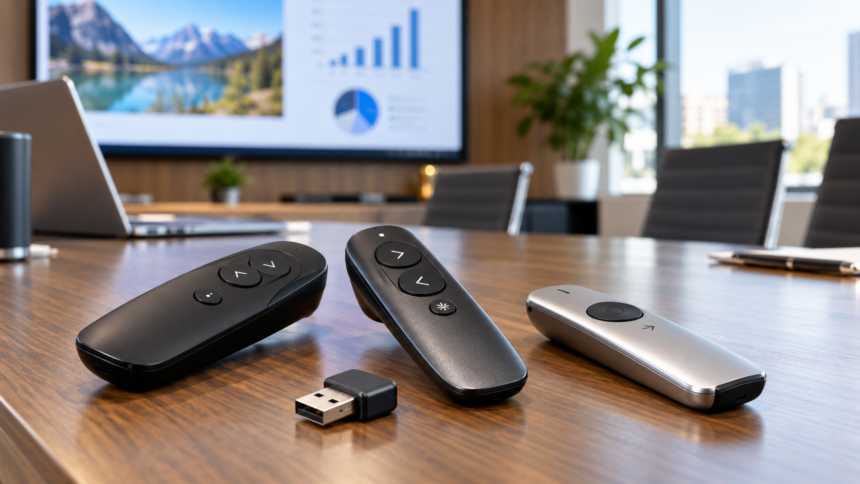
The best wireless presentation clickers help you change slides without standing beside your computer. You hold a remote, press a button, and move to the next slide. This lets you walk around while keeping control of your presentation.
However, the right clicker depends on what you need. Some people want only forward and back buttons. Others need a pointer, more room to move, or tools that highlight parts of a slide.
This guide looks at three useful Logitech models and explains how to choose between them. The choices are based on their listed features, rather than hands-on testing. You will also learn which details to check before buying.
What Is a Wireless Presentation Clicker?
A wireless presentation clicker is a handheld remote that sends commands to a computer. Its main job is to help you move through slides.
Many models connect through a small USB receiver. You plug this receiver into your computer. Other models can use Bluetooth, which connects the remote without a separate receiver.
A clicker does not store or create your slides unless the model has a special feature for that purpose. Your computer still runs the presentation. The remote simply gives you control from a distance.
Think of it like a television remote. It sends an instruction, while another device does the main work.
What Makes a Presentation Clicker a Good Choice?
The best wireless presentation clickers should suit your computer, slides, and room. A long feature list means little if the remote is hard for you to use.
Start with the buttons. You should be able to find the next-slide button without looking down each time. Clear spacing and different button shapes can help.
Next, check the connection. Make sure the receiver fits your computer or that the clicker supports a suitable Bluetooth connection.
Also consider the pointer. A physical laser and a digital pointer work in different ways. Your screen and presentation setup will help decide which one makes more sense.
Finally, look at power and software needs. A simple remote may be a better fit when you cannot install extra apps.
1. Logitech R500s: A Good Choice for Simple Controls
The Logitech R500s is worth considering if you want an easy button layout and a choice of connections.
It has three buttons, a red laser pointer, and support for both a USB receiver and Bluetooth Low Energy. Logitech lists its wireless range as up to 20 meters. Actual range can change with the room and computer setup.
Its rubber surface and textured buttons are designed to help with grip. The optional Logi Options+ app lets you change button functions and check battery life.
Based on these features, the R500s is a sensible starting point for someone who values simple slide control.
The main limit is its laser pointer. Logitech explains that the red dot can be less visible on LCD and plasma screens. If you mainly present on a television, consider whether a digital pointer would suit you better.
Choose this model when easy controls and connection choice matter more than advanced highlighting tools.
2. Logitech R400: A Good Choice for Basic Slide Control
The Logitech R400 is another option for people who want a straightforward presentation remote.
It connects through a USB receiver. Logitech says no extra software is needed for its plug-and-play setup. The receiver can be stored inside the remote after use.
The R400 includes a red laser pointer and a battery indicator. Its stated wireless range is up to 15 meters, although real range depends on conditions.
Its buttons are designed to be found by touch. This is useful when you want to keep looking at the audience while changing slides.
Based on its features, the R400 suits buyers who prefer a receiver connection and basic controls. Check the current computer requirements before buying, especially if you plan to use it with several computers.
Also check the USB port you will use. A receiver is only helpful when you can connect it to your laptop.
Choose the R400 if its simple setup matches your presentation needs.
3. Logitech Spotlight 2: A Good Choice for Digital Highlighting
The Logitech Spotlight 2 offers more ways to point out details on a slide.
Logitech lists tools such as Spotlight, Magnify, Squarelight, and Annotate. These help you draw attention to an area, enlarge details, or mark parts of a slide. The remote also includes a digital pointer and a physical laser.
It connects through Bluetooth or its included Logi Bolt USB-C receiver. Its stated wireless range is up to 30 meters.
The Spotlight 2 also has haptic feedback. This means you can feel small pulses from the device during certain actions.
Logi Options+ supports its digital tools and custom actions. Before choosing it, check that you can install and use the app on your presentation computer.
Based on its features, this model suits people who need more than slide changes. However, extra tools take practice.
Choose it when digital highlighting solves a clear need in your presentations.
Laser Pointer or Digital Pointer: Which Should You Choose?
A laser pointer shines a real dot of light onto a surface. A digital pointer creates a pointer effect through the computer.
This difference matters when choosing among the best wireless presentation clickers. A laser dot may be difficult to see on some television screens. It also does not become part of the slide image that your computer shares with online viewers.
A digital pointer can be more useful for screen-based highlighting. However, you should test whether the effect appears in your chosen screen-sharing setup.
Ask yourself where your audience will look. Will they watch a projector screen, a television, or a shared computer screen?
Choose the pointer for that situation. Do not buy a remote only because its pointer sounds impressive.
How Much Wireless Range Do You Need?
Wireless range tells you how far the remote may work from its connection point. Manufacturers often describe this distance with the words “up to.”
These words matter. They describe a maximum listed distance, rather than a promise that every room will give the same result.
For a small room, there may be little reason to choose a clicker only for its longer range. For a large room, having more distance available may be useful.
Think about the farthest place you expect to stand. Then test the remote from that spot before your talk.
A working connection at your planned position is more useful than a large number on the box.
USB Receiver or Bluetooth: Which Is Easier?
Neither connection is best for everyone. The right choice depends on your laptop and how you use it.
A USB receiver gives you a small piece to plug in. This can be convenient, but you must keep track of it. Check whether the remote includes a storage space for the receiver.
Bluetooth avoids using a receiver during that connection. However, you need to pair the remote with the computer first.
If you often change computers, think about how you will connect each time. If your laptop has few ports, Bluetooth may be helpful.
For either method, try the connection before the presentation begins.
Check Software, Buttons, and Power Before Buying
Read the current product requirements for your exact computer system. A remote that supports one setup may not offer every feature in another.
Check your slide app too. Moving forward and back is different from using custom shortcuts or digital highlighting. Confirm the features you actually need.
Then think about button comfort. Can your thumb reach the main controls? Are nearby buttons easy to mix up? A clear layout may matter more than extra functions.
Finally, check how the remote gets power. Find out whether you need replacement batteries or a charging cable. Follow the maker’s charging instructions and check the power level before use.
These small checks can prevent an awkward surprise when it is time to change slides.
Which Clicker Should You Pick?
Choose the R500s if you want simple controls with USB and Bluetooth connection options. Choose the R400 if you prefer basic slide control through a USB receiver.
Consider the Spotlight 2 if you need digital highlighting and can use its software on your computer.
These are feature-based suggestions. The best choice is the one that meets your needs without making control harder.
Before buying, write down three things: your computer connection, your screen type, and the controls you need. Compare each remote against that short list.
Conclusion
The best wireless presentation clickers make slide control easy and fit the way you present. The R500s, R400, and Spotlight 2 each offer a different mix of controls and pointing tools.
Check the connection, screen, software, range, and power needs before choosing. Then practice with the remote on your own computer. A clicker that you understand and can use comfortably is the most useful choice for your next presentation.
Read also Bunny Hayler: Her Age, Family, and Latest Verified Information