

A video can have a beautiful setting and still feel wrong if everything moves at once: the subject drifts, the background shifts, and an object changes shape. To create more intentional motion, decide what should move, how it should move, and what should stay still. Seedance 2.5 Flash lets creators generate and compare short video ideas, making it easier to explore different actions before developing a longer sequence.
This guide focuses on movement inside the scene: people, objects, and environmental details. You will learn how to describe an action clearly, test variations, and fix common problems when the result does not match your idea.
When a clip looks wrong, first name the failure: too much movement, a changing object, a drifting background, or an action with the wrong pace. Each problem calls for a different adjustment.
Four Motion Problems and How to Fix Them
When a clip does not work, identify the specific problem before rewriting everything. The right fix depends on whether the issue is the action, the scene, or the way the viewer sees it.
Problem 1: Too Many Things Move at Once
Reduce the number of actions and specify the intended pace. Replace “the person opens the book and gestures while the room moves around them” with “the person slowly opens the book; the camera remains fixed.” Add background motion later if it helps.
Problem 2: An Object Changes Shape
Try a simpler movement and a clearer view of the object. Replace “the cup spins rapidly while the camera circles it” with “the cup turns slightly clockwise on the table; camera remains fixed.” Review the handle and rim throughout. If exact shape is essential, use an accurate source image or real footage and compare the result carefully.
Problem 3: The Background Moves Unexpectedly
Ask for a fixed camera and identify what should remain stable. Instead of “a windy room comes to life,” try “the curtain moves gently in the breeze; the table and chair remain stationary; camera fixed.” If the background still shifts, a closer composition with fewer objects may help.
Problem 4: The Action Has the Wrong Pace
A technically smooth action can still feel wrong. A fast page turn may not suit a quiet reading scene; a barely visible movement may not communicate urgency. Return to the purpose of the shot and adjust the pace, direction, or framing accordingly.
Match the Fix to the Subject
People, objects, and natural elements each give viewers different clues about motion. Choose details that make the action understandable instead of adding movement everywhere.
People: Describe a Visible, Focused Action
For a person entering a room, identify the starting position and direction: “A person walks slowly toward the window and stops beside the chair.” If the shot is about their reaction, a smaller action such as turning their head may be more useful than walking across the whole room.
Review contact with the environment. Do feet appear to meet the floor? Does a hand reach the handle it is supposed to touch? If the action becomes unclear, split it into two shots: approach the door, then cut to a close view of the handle.
Objects: Specify the Relationship to the Surface
For an object, describe where it begins and what it does: “A folded paper airplane glides from left to right above a wooden desk” or “a ceramic cup rotates slowly on a table.” If an object should not slide, say so and check whether it stays in place.
When a real product is involved, compare the generated movement with the actual object. A model can invent a hinge, button, or opening mechanism. Use authorized footage for details viewers need to evaluate accurately.
Natural Elements: Control the Intensity
For environmental motion, choose a level that fits the story: light rain against a window, a gentle breeze through leaves, or slow ripples across a pond. A background element does not have to move dramatically to make the scene feel alive.
If wind is meant to move only the curtain, make the relationship explicit: “The curtain shifts gently; the chair and table remain stationary.” Then watch for unwanted changes in the objects that should be still.
Identify Which Layer Is Causing the Problem
A scene can include a moving subject, a moving environment, and a moving camera. Naming each separately makes it easier to tell the model what you intend and to identify what went wrong.
Subject Movement
This is the action performed by the main person, animal, or object. A person turns a page, a bicycle rolls forward, or a paper airplane glides across a room. Describe the movement in observable terms: direction, speed, and the object’s relationship to its surroundings.
Compare “the person reads” with “the person turns one page slowly and rests their hand on the open book.” The second gives the scene a visible action and a clear end state.
Environmental Movement
Environmental motion occurs around the subject: a curtain shifts, leaves move, rain falls, or light reflects on water. A small background movement can make a scene feel alive without competing with the main action.
Decide which elements should remain stable. If the person is reading beside a window, you might want a curtain to move while the table, chair, and book stay in place. Stating those relationships helps make the intended scene clearer.
Camera Movement
The camera describes the viewer’s changing point of view. A fixed camera observes the action from one position; a camera that follows a cyclist moves with the subject. Camera movement can support a scene, but it is useful to test the subject’s action first when you are troubleshooting motion.
For example: “A cyclist rides slowly from left to right; the camera remains fixed.” Once the direction and speed look right, try a separate version in which the camera follows. Compare whether the new viewpoint helps the viewer follow the action.
Rewrite an Unclear Motion Prompt
You do not need a complicated formula, but four questions can make an instruction more useful: What moves? In which direction? At what pace? What stays still? Add timing or an end state when those details matter.
A vague instruction might be: “A book moves naturally in a cozy room.” A clearer version is: “A person slowly turns one page of an open book. Their other hand rests on the table. A curtain moves gently in the background; the camera remains fixed.”
The clearer version distinguishes the main action, supporting motion, and fixed camera. It also gives you a way to review the result. Did the page turn once? Did the book stay on the table? Did the curtain move without taking attention away from the book?
A prompt guides the generation rather than guaranteeing an exact result. If a page bends into an impossible shape or the hand changes position, treat that as feedback and revise the shot.
Use Pace and Direction to Fine-Tune the Result
Words such as “moves” and “turns” leave room for many interpretations. Add a pace and direction when they affect the feeling or clarity of the shot.
Slow Movement Can Give Viewers Time to Notice
Consider a ceramic cup placed on a table. “The cup rotates” could produce a fast spin or a small turn. “The cup rotates slowly clockwise on the table” is more specific. If the cup’s handle needs to remain visible, add that requirement and inspect the result.
For a calm scene, a gentle action may be enough: a curtain moves slightly, steam rises, or a person lifts a cup. If you need a faster action, describe the direction and the moment at which it stops instead of combining several unrelated movements.
Direction Helps Connect the Shot
In a sequence, the direction of movement can help viewers understand where the subject is going. If a character leaves one shot toward the right and enters the next from an unexpected direction, the edit may feel confusing unless the change is intentional.
Write a simple continuity note: “The person walks from left to right toward the door.” Then review the generated clip and the next shot together. You can use a different angle, but make sure the relationship between the person and door remains understandable.
Test a Motion Fix With Seedance 2.5 Flash
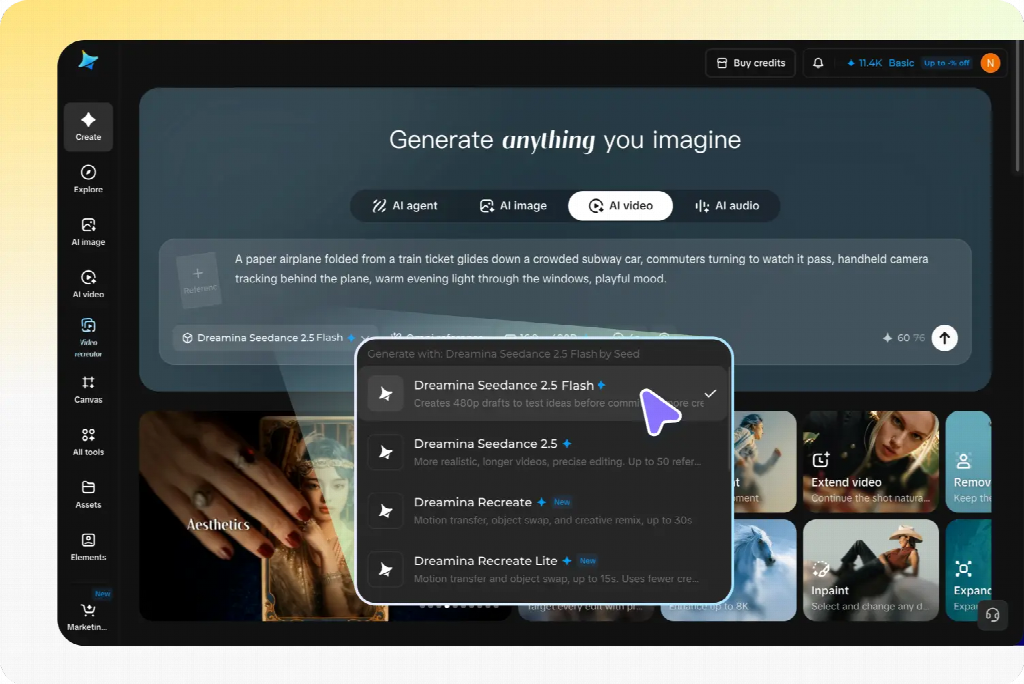
A written idea becomes easier to judge once you see it moving. Seedance 2.5 Flash is designed to help creators explore video directions quickly, using 480p or 720p clips to compare action, composition, and movement before developing a selected idea further.
Start With the Action You Need
Imagine a fictional scene: a person sitting beside a window with a closed book on the table. Open Dreamina’s AI video generator and select Seedance 2.5 Flash. Enter a prompt for one clear action: “A person slowly opens a book on a wooden table beside a window. Soft morning light, medium close view, camera remains fixed.”
Generate a short clip and watch it from beginning to end. Check the book’s cover, the position of the person’s hands, and the point where the book opens. This is a proposed example; the exact result will depend on the generation.
Check the Revised Action
Keep the setting and framing similar, then create a second direction: “A person gently turns one page of an open book on a wooden table beside a window. Soft morning light, medium close view, camera remains fixed.”
Put the candidates side by side. Does opening the book introduce the scene more clearly, or does turning a page create the quieter moment you want? Seedance 2.5 Flash gives you moving versions to compare, so the choice does not have to be made from a written description alone.
If you begin with an authorized image instead of text alone, use it as a visual starting point and describe the action you want to add. Check the resulting clip against the image: the book and hands may not remain identical in every frame.
Add Background Motion Only When It Helps
Once the main action works, try adding a small environmental detail: “A curtain moves gently in the breeze while the person turns one page.” Compare this with the simpler version. Does the curtain add atmosphere, or does it distract from the reading?
If the result becomes unstable, return to the simpler prompt and change one element at a time. Save the selected clips and their prompts. After choosing the motion direction, you can use Seedance 2.5 to develop another version; compare the new output with the selected Seedance 2.5 Flash clip because the movement and composition may be interpreted differently.
Review Motion in the Finished Sequence
Watch each clip at normal speed, then pause at the beginning and end. Check the subject’s position, the action, and the important objects. Place adjacent shots together to see whether the movement continues logically across the cut.
Use a reference image or clip only when you have permission to upload and adapt it. If a generated scene depicts a real person, product, or event, check that the result does not imply an action or feature that is untrue.
Good motion starts with a clear choice. Give the main subject one purposeful action, describe the pace and direction, and decide what should stay stable. Then use Seedance 2.5 Flash to compare moving versions and refine the one that best supports the scene.